Google Sites Launch Checklist for a Business Website
A Google Sites launch checklist is a pre-publication check of a business site's message, contact path, mobile layout, accessibility, sharing, search setting, and domain. Run these 12 checks before you publish, then test the public version outside your Google account.
By Logan Moore · Updated October 7, 2026
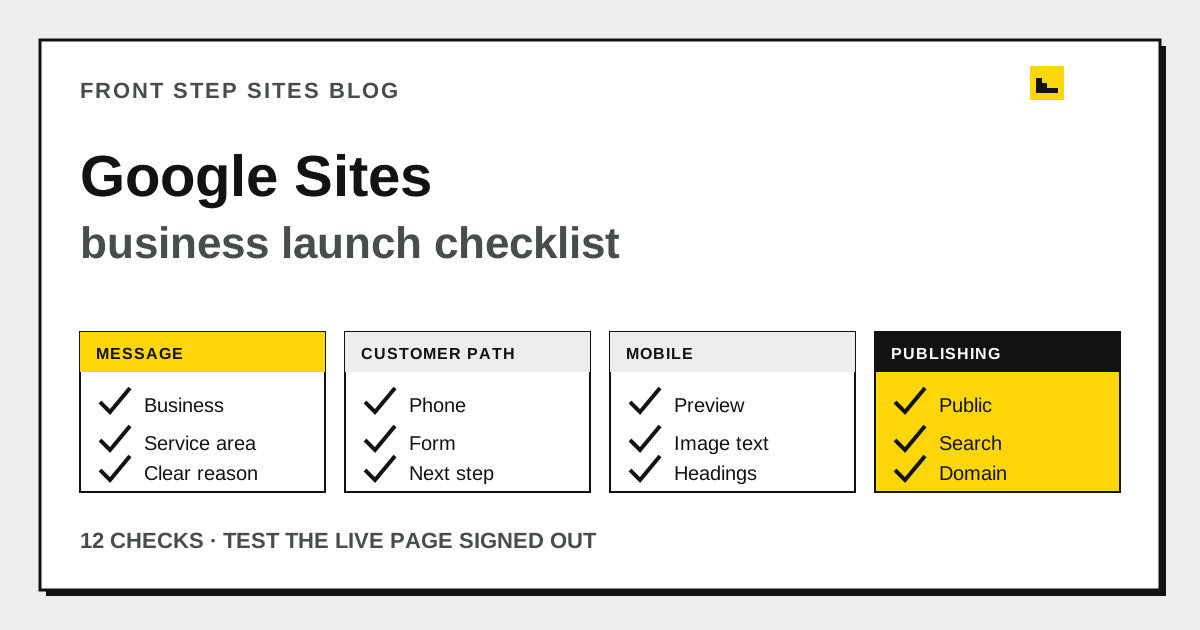
A Google Sites launch checklist is a pre-publication check of a business site's message, contact path, mobile layout, accessibility, sharing, search setting, and domain. Run these 12 checks before you publish, then test the public version outside your Google account. Google Sites Help says only the site owner can connect a custom domain, and a domain change can take up to 48 hours to appear.
What should you check before publishing a Google Site?
A Google Sites launch check should cover four jobs: explain the business, help a customer act, work on a small screen, and publish to the correct audience. The checklist below gives each job three checks.
| Area | Check 1 | Check 2 | Check 3 |
|---|---|---|---|
| Message | Business and service | City or service area | Reason to choose you |
| Customer path | Working phone link | Short contact route | Clear next step |
| Mobile and access | Phone preview | Useful image text | Readable headings |
| Publishing | Public sharing | Search setting | Live domain test |
Do the checks in that order. A perfect domain cannot rescue a page that never says what the business does, and attractive photos cannot rescue a broken call button.
Does the first screen explain the business?
The first screen of a Google Site should name the business, the main service, the location or service area, and the next step. A useful opening for a tree company might read, “Oak & Line Tree Care handles pruning and removals in Dayton. Call for an on-site estimate.” A vague line such as “Quality you can trust” makes the visitor hunt for basic facts.
Check three details before moving on:
- The site title uses the real business name.
- The main heading names a service a customer would recognize.
- The first visible paragraph says where the business works.
Keep the wording consistent with the business’s Google Business Profile. If one says “Oak and Line LLC” and the other says “Oak & Line Tree Experts,” a customer may wonder whether they found the same company.
Can a customer finish the main task?
A Google Site should give a customer one obvious way to call, request an estimate, book, order, or visit. Google Sites Help documents a built-in Button block that can point to another page or URL. Use a label that describes the result, such as “Call 404-555-0142” or “Request an estimate,” instead of “Learn more.”
Test the path rather than admiring it. Tap the phone link on a phone. Submit the form with a test name and confirm where the message arrives. Open the directions link and check the pin. If the site sends people to a separate booking service, complete a test booking up to the final confirmation screen.
For a business that wants reviews to support its reputation, the same discipline applies to review links. The guide to getting more Google reviews for a pest control business explains how to ask after a clear service handoff instead of scattering review requests across every page.
Does the site have the pages a customer expects?
A business Google Site should have enough pages to separate distinct customer questions. A simple local service site usually needs Home, Services, About, and Contact. Add a separate page when a service has its own process, price questions, or customer decision.
Google Sites Help groups page work into adding, deleting, and organizing pages. That sounds basic, but the navigation deserves a literal click-through. Open every menu item and confirm it reaches the intended page. Look for an old draft, an empty page, or two menu labels that lead to the same information.
If you are still building rather than checking, use the step-by-step Google Site guide first. It covers templates, pages, publishing, and the initial sites.google.com address.
Does the Google Site work on a phone?
A Google Site should be previewed in the phone layout and then tested on a real phone after publication. Google’s publishing instructions say to click Preview and choose a layout option. That preview catches obvious stacking problems, while the live phone test catches tap and handoff problems.
Check the header, first button, menu, photo crops, form, and footer. Read every line without zooming. Make sure a floating image has not pushed a key sentence far below the first screen. If two buttons sit side by side, confirm that each label still fits.
Do not stop at appearance. The W3C’s Web Content Accessibility Guidelines 2.2 set a minimum pointer-target benchmark of 24 by 24 CSS pixels, with defined exceptions. Google Sites controls much of the layout, but you can still avoid tiny linked images and crowded rows of icons.
Have you described useful images and headings?
A Google Site should give meaningful images useful alternative text and organize long sections with descriptive headings. Google Sites Help tells editors to select an image, open More editing options, choose Add alt text, and enter the description. Describe the information the image adds, such as “Technician replacing a garage door spring,” rather than “image” or a string of keywords.
Headings need the same plain language. The W3C says headings communicate how content is organized and can provide in-page navigation. “Emergency tree removal” helps more than “Solutions.” Scan only the headings. If they do not outline the page by themselves, rewrite them.
Are the sharing and search settings correct?
A public business Google Site should be set so anyone on the web can view it, without accidentally requesting exclusion from public search engines. Google Sites Help separates publishing from sharing: after publishing, the owner chooses Restricted or Public for the published site. Confirm Public, then open the address in a private browser window where you are not signed in.
Google Sites also offers a setting that requests public search engines not display the site. Google says this request does not guarantee exclusion, but a business seeking customers should still make sure the box is not selected. This is an easy launch mistake because editors can see the site while signed in even when the public cannot.
Is the custom domain connected to the right owner?
A custom domain for a Google Site should be connected by the site owner and tested with the full public address. Google Sites Help says one site can connect up to five custom domains, only the site owner can make the connection, and changes may take up to 48 hours to appear. It also requires a subdomain such as “www.”
The steps are in our guide to putting a Google Sites site on your own domain.
Write down three owners before launch: who owns the Google Site, who controls the domain registrar account, and who can edit the site. Those may be one person, but they should never be a mystery. If the builder disappears, the business still needs both the site and the domain.
Open the custom address with and without “www.” Check that the secure padlock appears, the address does not loop, and every menu link stays on the expected domain. If domain control feels murky, compare Google Sites alternatives for a business before putting the address on signs or vehicles.
How do you run the final five-minute live test?
The final Google Sites test should happen on the published page, signed out, using both Wi-Fi and a phone connection. Use this five-minute route:
- Search or type the public address and time how long it takes to recognize the business.
- Tap the main action and confirm the right app, form, or page opens.
- Visit every navigation item and return home.
- Rotate the phone and check for cropped text or images.
- Ask someone unfamiliar with the site to find the service area and contact method.
Record failures as specific fixes. “Button opens an old form” gives you a repair. “Site needs polish” gives you an opinion. Publish the repair and repeat the same route.
What are the frequently asked questions?
Is Google Sites free for a business website?
Google Sites is available through a Google account, and a site can publish to a sites.google.com address. A custom domain is a separate asset that you must own and connect. If you are comparing the total work as well as the tool, compare small-business web builder options before deciding.
How long does a Google Sites custom domain take to work?
Google Sites Help says custom-domain changes may take up to 48 hours to become visible on the internet, though they often appear sooner. Avoid changing several DNS records while you wait because that makes the problem harder to trace.
Can customers see a Google Site before it is public?
Only people allowed by the current sharing setting can see a restricted published site. For a public business launch, choose Public for the published site and test the URL in a private browser window while signed out.
Does publishing save later Google Sites edits automatically?
Editing and publishing are separate actions in Google Sites. Google’s editing help repeatedly instructs users to click Publish after a change, so add that step to every update routine.
What should you do after the site passes?
Save the 12 checks with the site login and domain details. Run them again after a new page, form, phone number, or domain change. The signed-out live page is the version that counts.