Create a Website With Wix: 9-Point Launch Checklist
A start-to-launch checklist for a small-business owner creating a website with Wix.
By Logan Moore · Updated November 22, 2026
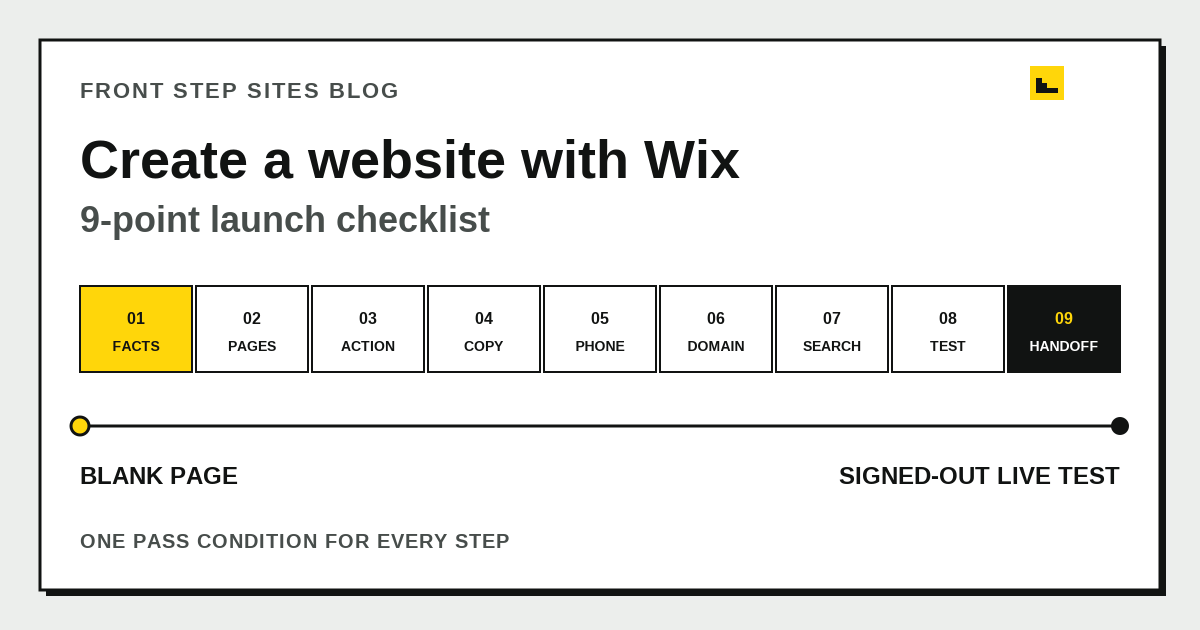
To create a website with Wix, gather your business facts, choose the pages and customer action, build the desktop and phone layouts, connect a domain, complete the page titles and Wix SEO Setup Checklist, then test the published site while signed out. Do not call the job finished until the phone link, form, navigation, and Google setup all pass.
What should you prepare before opening the Wix editor?
Before opening the Wix editor, prepare the facts and files that every page will need. This keeps the project focused on customer questions instead of sample text and decorative choices.
Gather:
- The business name exactly as customers see it
- The public phone number, email, hours, address, or service area
- A short list of services you actually offer
- The main action a visitor should take, such as calling or requesting an estimate
- Your logo, plus original photos you have permission to publish
- Any required license wording, policies, or price information
Decide who controls the Wix account and domain login. Record the recovery email and billing owner. A domain is one of the four working parts of a website, so protect its ownership.
Which nine checks take a Wix website from blank page to launch?
These nine Wix checks cover the path from planning to a public site. Each row has a concrete pass condition, which is more useful than marking “design” or “SEO” complete.
| # | Check | Pass when |
|---|---|---|
| 1 | Confirm business facts | Name, contact details, hours, and coverage match your current records |
| 2 | Plan the pages | Every page has one job and belongs in the menu or customer path |
| 3 | Choose the customer action | The site leads with one clear call, quote, booking, or visit action |
| 4 | Write before decorating | Headings and useful copy replace all template filler |
| 5 | Build the phone layout | Important facts and actions work at a narrow screen width |
| 6 | Connect the domain | The intended public address loads securely |
| 7 | Complete search basics | Each page has a descriptive title, description, and index setting |
| 8 | Publish and test | Menu, links, phone number, and form work while signed out |
| 9 | Record the handoff | The owner knows the logins, renewal, update process, and next review date |
This checklist is narrower than a full small-business website creation guide. It assumes you have already chosen Wix and need a definition of done for that build.
How should you plan the pages before choosing a Wix layout?
Plan Wix pages by giving each page one customer question to answer. A basic service-business site might use Home, Services, About, and Contact, with separate service pages only when there is enough distinct information to help a reader.
Write a one-line job for each page. The Home page confirms what the business does and where it works. A service page explains the work, who it suits, and the next step. The Contact page gives the real contact routes and sets an honest response expectation.
Sketch each page in plain text. Put the service and location near the top, followed by proof you can support, the process, and the next step. Pick a Wix layout that can hold that order.
What should every Wix page say before you style it?
Every Wix page should state its subject in the main heading and answer the visitor's likely next question in the opening paragraph. Replace every piece of template copy, including captions, button labels, testimonials, staff names, and footer details.
Use specific headings such as “Water heater repair in Dayton” when that is accurate. Keep buttons literal: “Call the shop” or “Request an estimate” tells a visitor what will happen.
Do not publish sample reviews or project claims. If proof is not available, explain the real process instead. A clear description of what happens after an estimate request is useful and does not require invented results.
How do you check a Wix website on a phone?
Check a Wix website on a phone by reviewing the narrow layout in the editor and then opening the published URL on a physical device. The second check matters because an editor preview cannot prove that the public phone link, form, or menu completes its job.
Google Search Central says, “Google uses the mobile version of a site's content, crawled with the smartphone agent, for indexing and ranking.” Google is the primary authority for how Google Search crawls and indexes pages. Keep the primary content and meaningful headings available in the phone layout, then follow the practical checks in the guide to building a small-business website for phones first.
Use the phone as a customer would. Tap the main button, open the menu, read the smallest text, and submit a labeled test form. Check that sticky bars do not cover content.
How should you connect the domain and prepare the Wix site for Google?
Connect the intended domain, confirm the secure address loads, and complete the search settings for each public page. The exact dashboard labels can change, so use Wix's current help instructions rather than an old video.
The Wix Help Center says, “The Wix SEO Setup Checklist is a step-by-step checklist designed to help you improve your site's search engine optimization (SEO).” Wix publishes and maintains the builder's official setup documentation.
That source supports the checklist's stated SEO purpose and says it uses business information and keywords. It does not establish that completing the checklist guarantees indexing or rankings. Give every public page a descriptive title and meta description, check that the page is allowed to be indexed, and complete the Wix checklist with accurate business information and relevant phrases.
What should you compare before paying for a Wix plan?
Before paying for a Wix plan, compare the full billing period, domain arrangement, included work, and update responsibility. Read the current Wix checkout because prices and plan contents can change by date, location, currency, tax, and promotion.
Here is a reproducible budget checkpoint using this repository's published product source, not a Wix price quote. Front Step Sites lists Launch at $99 yearly and Grow at $290 yearly, so the difference between those two annual subscription prices is `$290 - $99 = $191`.
That $191 result only compares two Front Step Sites prices shown in the tracked plan table. It does not state a Wix price, compare features, include tax or separately quoted work, or predict revenue. The evidence supports asking what a plan includes before choosing it. The guide to what $99 covers for hosting and maintenance shows how to inspect that scope without treating the lowest displayed number as the full decision.
What must you test after publishing the Wix site?
After publishing the Wix site, test the public address in a signed-out browser on a phone and computer. Record the URL, device, date, and result.
- Type the domain directly and confirm it reaches the intended site securely.
- Use the menu to open every public page and return home.
- Tap the telephone link and inspect the number in the dialer before canceling.
- Submit the shortest valid form with clearly labeled test details.
- Confirm the business receives the message and the visitor sees an accurate next step.
- Open the important pages on a phone and compare their facts with desktop.
- Search the public page source or search preview for the intended title and description.
Publishing makes the site available. This test proves only that the checked customer path worked at that time. It does not prove that Google has indexed the page or that the site will rank for a query.
What are the frequently asked questions?
These Wix website questions come up while owners choose a plan, domain, and launch process.
Can I create a Wix website for free?
You can start building and testing with the options Wix currently makes available, but check the live plan terms before relying on a feature or connecting a custom domain. Put the billing period, domain, renewal, and required features in writing before paying.
Is a Wix site the same as a Google Sites website?
No. Wix and Google Sites are separate website builders with different editors, account systems, publishing steps, and domain arrangements. Choose one platform for the public site and follow that platform's current instructions.
Do I need code to create a website with Wix?
You do not need code for a standard Wix site built with its visual tools. You still need accurate business information, useful writing, permitted images, a sensible page structure, and a real launch test.
Does publishing a Wix site put it on Google immediately?
No. Publishing makes the site public, while Google indexing is a separate process that can take time. Complete the current Wix SEO Setup Checklist, make sure public pages can be indexed, and use Google Search Console when eligible to inspect indexing status.
What should you do after the checklist passes?
After all nine checks pass, save the launch record and schedule a review whenever hours, services, staff, contact details, or policies change. Keep domain and billing access with the business owner, and test the main contact path again after any structural edit.