HTML Website Development: Build a Page Step by Step
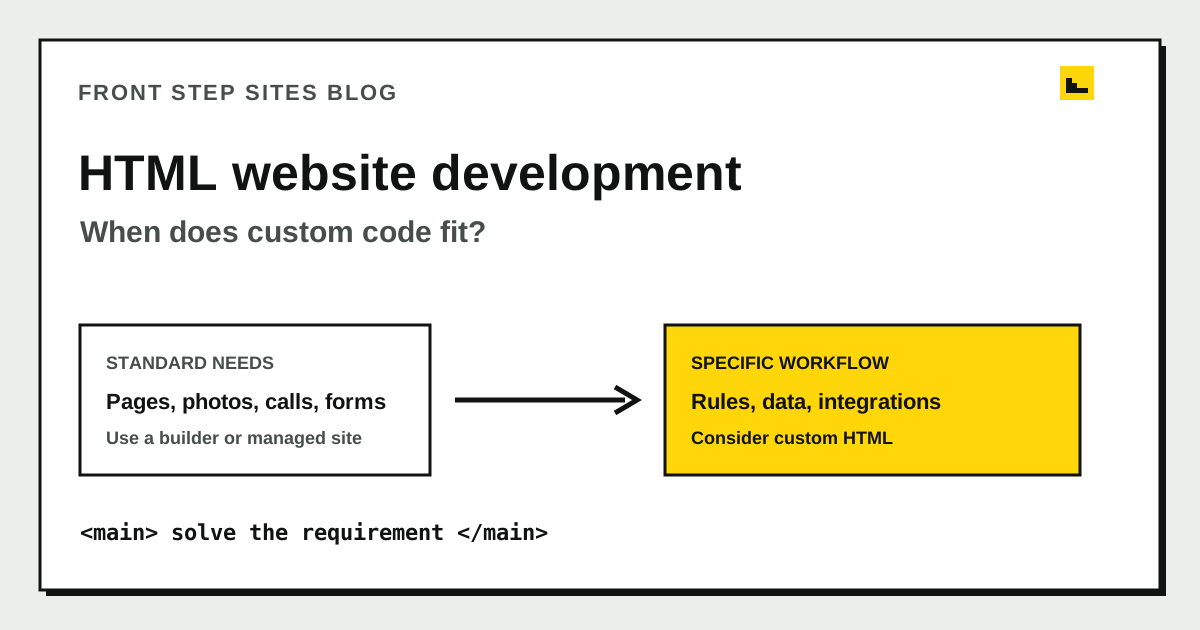
HTML website development is the work of creating the structure and content of web pages with HTML, usually alongside CSS for appearance and JavaScript for behavior. This tutorial shows you how to build and test a complete one-page business website. Custom code fits when a site needs a specific workflow that standard website tools cannot handle well. Front Step Sites is a done-for-you website service for standard small-business sites, not a custom HTML development shop.
By Logan Moore · Updated October 25, 2026
HTML website development starts with a plain text file that describes the page's headings, paragraphs, links, images, and sections. CSS controls the appearance, and JavaScript can add behavior when the page needs it. The six steps below produce a working one-page business website without a framework or website builder.
How do you build an HTML website step by step?
- Create a project folder and an index.html file.
- Add the HTML document structure and page information.
- Build the visible page with semantic HTML.
- Add a stylesheet for the layout and phone view.
- Open the page in a browser and test every action.
- Publish the files to a web host.
Step 1: Create the project files
Create a folder named `business-site`. Inside it, create two plain text files named `index.html` and `styles.css`. The finished folder should contain:
business-site/
  index.html
  styles.css
The name `index.html` matters because most web hosts look for that file when someone visits a folder or domain. Use a code editor or a plain text editor that does not add rich-text formatting.
Step 2: Add the HTML document structure
Paste this foundation into `index.html`. Change the title and description so they accurately describe the business and service shown on the page.
<!doctype html>
<html lang="en">
<head>
  <meta charset="utf-8">
  <meta name="viewport" content="width=device-width, initial-scale=1">
  <title>Oak Street Handyman | Home Repairs in Tulsa</title>
  <meta name="description" content="Oak Street Handyman provides small home repairs in Tulsa. Call to discuss your repair list.">
  <link rel="stylesheet" href="styles.css">
</head>
<body>
</body>
</html>
The doctype tells the browser to use modern HTML rules. The language helps software interpret the text. The viewport line makes the layout use the width of a phone screen instead of pretending the screen is desktop-sized. The title and description identify this specific page for people and search engines.
Step 3: Build the visible page with semantic HTML
Put the following code between the opening and closing `body` tags. Replace the example name, city, services, and phone number with verified business information before publishing.
<header>
  <a href="#main">Skip to main content</a>
  <p>Oak Street Handyman</p>
  <nav aria-label="Main navigation">
    <a href="#services">Services</a>
    <a href="#contact">Contact</a>
  </nav>
</header>

<main id="main">
  <section class="hero">
    <h1>Small home repairs in Tulsa</h1>
    <p>Help with drywall patches, door adjustments, and fixture replacements.</p>
    <a class="button" href="tel:+19185550123">Call (918) 555-0123</a>
  </section>

  <section id="services">
    <h2>Home repair services</h2>
    <ul>
      <li>Drywall patching</li>
      <li>Sticking door adjustments</li>
      <li>Light fixture replacements</li>
    </ul>
  </section>

  <section id="contact">
    <h2>Discuss your repair list</h2>
    <p>Call to explain the work, confirm the service area, and ask about availability.</p>
    <a href="tel:+19185550123">(918) 555-0123</a>
  </section>
</main>

<footer>
  <p>Oak Street Handyman serves Tulsa, Oklahoma.</p>
</footer>
Semantic elements such as `header`, `nav`, `main`, `section`, and `footer` state the purpose of each part. One descriptive `h1` names the page's main subject. Each later section starts with an `h2`. The phone links use the `tel:` scheme so a phone can start a call after the visitor taps and confirms.
Step 4: Add CSS for the layout and phone view
Paste this CSS into `styles.css`. The rules keep the line length readable, give links a visible keyboard focus, and allow the layout to fit narrow screens.
:root {
  color: #17221b;
  background: #f7f3e8;
  font-family: system-ui, sans-serif;
  line-height: 1.6;
}

body {
  margin: 0;
}

header,
main,
footer {
  width: min(100% - 2rem, 68rem);
  margin-inline: auto;
}

header {
  display: flex;
  align-items: center;
  justify-content: space-between;
  gap: 1rem;
  padding-block: 1rem;
}

nav {
  display: flex;
  gap: 1rem;
}

section {
  padding-block: 2.5rem;
}

.hero {
  max-width: 44rem;
}

.button {
  display: inline-block;
  padding: 0.75rem 1rem;
  color: white;
  background: #174d32;
  border-radius: 0.35rem;
}

a:focus-visible {
  outline: 3px solid #b44b20;
  outline-offset: 3px;
}

@media (max-width: 36rem) {
  header {
    align-items: flex-start;
    flex-direction: column;
  }
}
CSS changes presentation rather than meaning. Keep the HTML usable before adding decoration: the headings should stay in order, the text should remain readable, and each action should still be a real link or form control.
Step 5: Open and test the HTML website
Double-click `index.html` to open the page in a browser. You do not need hosting to perform this first check. After every edit, save the file and refresh the browser.
Test the page as a visitor would:
- Narrow the browser to about 390 pixels and confirm no text or navigation runs off the screen.
- Use the Tab key to reach every link and confirm the focused link has a visible outline.
- Select the Services and Contact links and confirm each one moves to the correct section.
- Test the phone link on a phone and confirm the displayed number matches the number offered to the dialer.
- Read the title shown in the browser tab and confirm it identifies the business, service, and location accurately.
- Replace every example fact before publishing; do not leave a sample phone number or service on a real business site.
You can also run a local web server from the project folder if your computer has Python installed:
python3 -m http.server 8000Then open `http://localhost:8000` in the browser. A local server more closely matches how the files will load after publishing, but it does not make the page public.
Step 6: Publish the HTML files
To publish the website, place `index.html` and `styles.css` together on a web host and connect the business's domain according to that host's instructions. Loading the public URL is part of the work: confirm the page uses HTTPS, the CSS loads, the phone link is correct, and the same tests from Step 5 still pass.
HTML files do not process contact forms or store submissions by themselves. A working form needs a server-side endpoint or a form service, clear delivery handling, spam protection, and a tested success and failure path. Do not publish a form that appears to send but loses the visitor's message.
When does custom HTML fit a small business?
Custom HTML fits when the website must perform a business-specific task that standard website tools cannot handle cleanly. Examples include a quote calculated from company rules, live inventory from a distributor, a secure customer account, or a multi-step application tied to an internal system.
Write the unusual requirement as testable behavior. “A customer selects three job conditions, receives the correct service tier, and sends the result into dispatch” is specific enough to estimate and verify. “We want a custom modern website” is not.
A website builder or managed service is usually enough when the site needs service pages, original photos, reviews the business has permission to show, phone links, and a standard contact form. The website builder versus done-for-you guide compares those choices.
How do you scope the custom parts?
List each requirement and classify it as standard, configurable, or custom. A business can keep ordinary pages in a maintainable content system and commission only the function that genuinely needs custom code.
| Requirement | Standard tool or custom work? | Reason |
|---|---|---|
| Service pages | Standard | Normal page templates handle them |
| Tap-to-call phone number | Standard | Basic link behavior |
| Contact form | Standard | Common fields and delivery workflow |
| Live distributor inventory | Custom or specialized integration | External data must stay synchronized |
| Calculator using company rules | Custom | Business logic needs definition and testing |
Any custom proposal should state the finished behavior, source-code access, hosting plan, testing responsibilities, account ownership, and process for changes after launch. A folder of code is not the whole website operation.
Frequently asked questions
Can HTML create a complete business website?
HTML can structure a complete business website, with CSS and JavaScript commonly handling appearance and interactive behavior. Hosting, a domain, form processing, security, and updates still need arrangements. The guide to creating a small-business website covers those surrounding steps.
Is an HTML website better for Google?
HTML is the normal structure behind web pages, including pages produced by website builders. Writing HTML directly does not guarantee a ranking. Accurate content, descriptive titles, crawlable links, semantic structure, phone usability, speed, and maintenance matter regardless of the tool that produced the HTML.
Is custom HTML faster than a website builder?
Custom HTML can be lightweight, but speed depends on the complete page: images, fonts, scripts, hosting, and code quality. Test the published URL on phones instead of assuming the development method decides the result.
Can I edit a custom HTML website myself?
You can edit custom HTML when you have source access and understand the publishing process. Ask the developer to demonstrate one real edit and deployment before handoff. Many owners prefer a content editor or a managed request process for routine changes.